
How to Configure Ollama to Listen on All Network Interfaces
Setting OLLAMA_HOST=0.0.0.0:11434 opens Ollama to your network, but the correct method differs by OS and the security risks are easy to overlook. This guide covers systemd, macOS, and Windows setup, firewall configuration, and how to avoid exposing an unauthenticated inference server.


TL;DR. How you make Ollama listen on all network interfaces depends on the OS you are on. On Linux, you must add OLLAMA_HOST environment variable to the systemd service override file. On Windows and MacOS, it is a matter of open the settings and enable network exposure.
Why Ollama Only Listens on localhost by Default
Out of the box, Ollama binds to 127.0.0.1:11434. That means only the machine running Ollama can talk to it. Try hitting it from a laptop on the same Wi-Fi and you'll get connection refused.
This is intentional: Ollama listens only on 127.0.0.1 because it does not provide built-in authentication or authorization. Exposing it to other machines without additional protections would allow anyone who can reach the port to use your models.
⚠️ Exposing Ollama to your local network is generally fine if you trust every device connected to it. However, avoid exposing port 11434 directly to the Internet, and be careful when using public or untrusted networks.
Making Ollama Listen on all Interfaces
The process of making Ollama listen to all interfaces is straightfoward but varies a little depending on the operating system. Check each OS subsection for specific instructions.
Linux
When following the installation procedure, most Linux installs run Ollama as a systemd service.
💡 You can check if that is the case by running the command
sudo systemctl status ollama.service.
In that case, setting the OLLAMA_HOST variable in your shell with export does nothing here. This is because the service doesn't read your shell. Instead, you must use the systemd way of supplying an environment variable.
First, run the bash command below.
sudo systemctl edit ollama.service
This opens the service configuration file. Add the lines below in the editable section. This tells Ollama to bind to every network interface instead of only 127.0.0.1.
[Service]
Environment="OLLAMA_HOST=0.0.0.0:11434"
💡 Do not forget to write the lines above in the editable section. Otherwise, they'll be overwritten.
Save and close. Then reload and restart:
sudo systemctl daemon-reload
sudo systemctl restart ollama
Confirm the variable actually took effect by looking at the /etc/systemd/system/ollama.service.d/override.conf file.
Key takeaway: on systemd, the environment variable lives in the service override, not your bashrc.
Windows
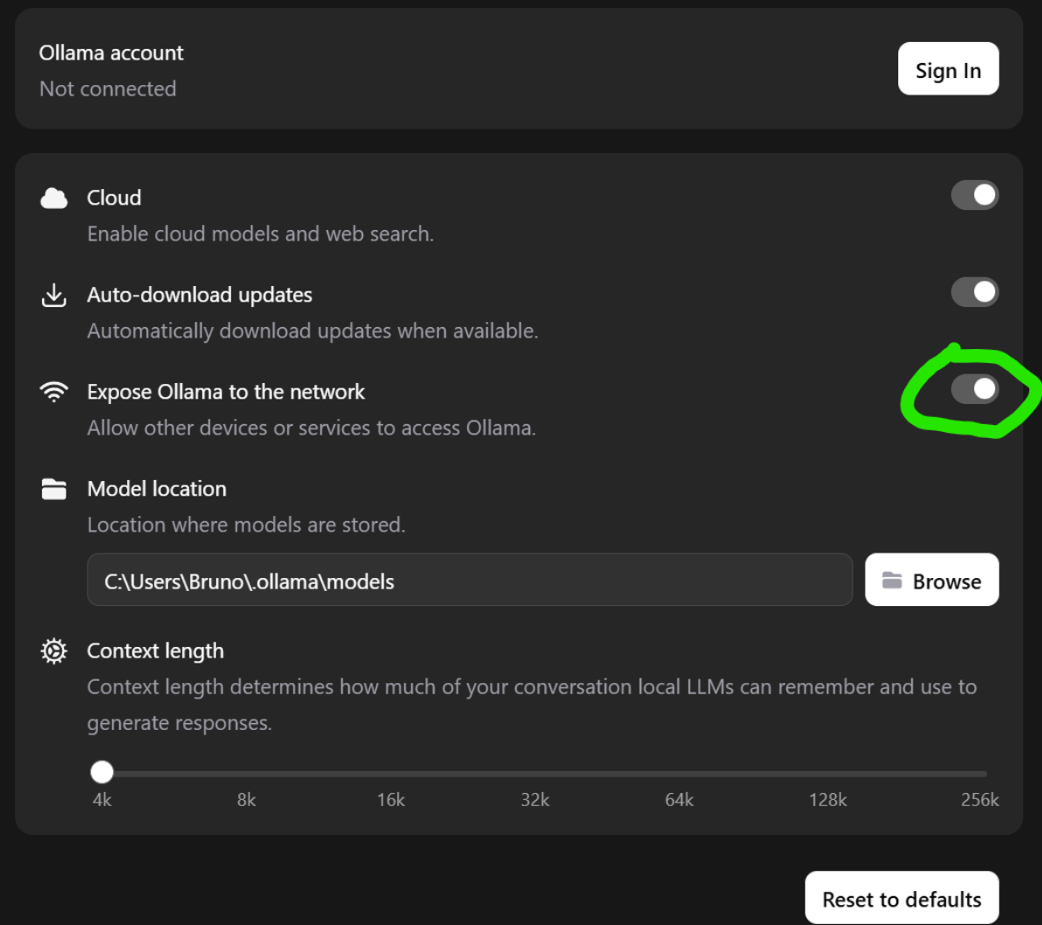
As with Linux, Ollama is installed as background service in Windows. In Windows, however, it provides a Settings dialog where you can enable network exposure.
First, you should click the Ollama icon on the taskbar and choose the Settings ... option, as shown in the image below.
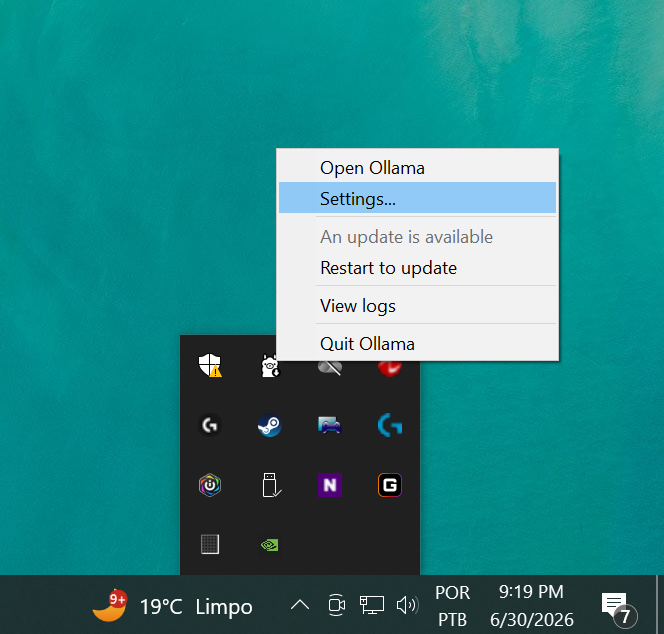
⚠️ If you cannot find the Ollama icon in the task bar, search for the Ollama application in Windows' start menu.
Then, you should enable the Expose Ollama to the Network option, as shown in the image below.
MacOS
MacOS' approach is similar to Windows: you need to open the Ollama application, navigate to settings, and enable network exposure.
⚠️ This procedure was created by research and AI usage. Since I do not have access to apple hardware, I cannot test these instructions by myself. Use them at your own discretion.
Making sure it works
First, find the server's local IP address. On Linux or macOS run ip addr or ifconfig. On Windows run ipconfig. Look for something like 192.168.1.50.
From the server itself, confirm Ollama is bound to the physical network interface instead of the loopback:
curl http://192.168.1.50:11434
You should get back the text Ollama is running.
Now the real test. From a different machine on the same network, run:
curl http://192.168.1.50:11434
💡 If you don't have curl installed, you can open both urls in a browser such as chrome.
Troubleshooting
Connection refused from another machine
Usually this means the variable didn't apply. You exported it in a shell instead of the service config, or you didn't restart Ollama service.
The connection times out instead of refusing
Usually the culprit is a firewall blocking access to port 11434. The fix is to configure the firewall to allow inbound traffic in port 11434. How to do it depends on the OS in use.
⚠️ The instructions below are by no means comprehensive. If your OS isn't listed search the web for
Allowing inbount trafic on port 11434 on <<insert your OS here>>
Ubuntu (with ufw):
sudo ufw allow 11434/tcp
Red Hat (with firewalld):
sudo firewall-cmd --add-port=11434/tcp --permanent
sudo firewall-cmd --reload
Windows
The first time Ollama binds to a non-local address, you may get a Windows Defender Firewall prompt. Allow it for private networks.
If you dismissed that prompt, add an inbound rule for port 11434 manually through Windows Defender Firewall with Advanced Security.
Wrapping it up
Once Ollama is accessible over the network, you can connect applications such as Open WebUI, LM Studio, custom scripts, or any client compatible with the OpenAI API by pointing them to http://<your-server-ip>:11434.
This makes it possible to run the model on one machine while interacting with it from another.
FAQ
What does OLLAMA_HOST=0.0.0.0 actually do?
Setting OLLAMA_HOST to 0.0.0.0:11434 tells Ollama to bind to every network interface on the machine rather than just localhost. After this change, other devices on the network can reach the Ollama API at the machine's IP address on port 11434, assuming the firewall allows it.
Why can't other machines reach Ollama even after I set OLLAMA_HOST?
The two most common causes are an unapplied environment variable and a closed firewall port. On systemd, the variable must go in the service override and Ollama must be restarted, because exporting it in your shell has no effect on the service. If the variable is correct, open TCP port 11434 in your firewall.
Is it safe to expose Ollama on all network interfaces?
It is acceptable on a trusted private LAN behind a router, and unsafe on any machine with a public IP. Ollama has no built-in authentication, so anyone who can reach port 11434 can use or modify your models. Put a reverse proxy with auth, a VPN, or Tailscale in front of it before allowing remote access.
Can I limit Ollama to one specific interface instead of all of them?
Yes. Instead of 0.0.0.0, set OLLAMA_HOST to the specific IP of the interface you want, such as 192.168.1.50:11434 for a LAN address or your Tailscale IP for VPN-only access. This keeps Ollama from listening on other interfaces like a public cloud IP on the same machine.
Local AI Playground
Real AI models running entirely in your browser. Your GPU, your data — nothing sent to a server.
Try it free